


How to Find Missing Numbers - 2 Methods in Power Query
Today we are going to discuss about various methods to find missing numbers in sequence, using M-Code. Today's discussion mainly focused on List functions in M-Code and handling record.
Lot to learn, let's dive in.

Here, we can see, sequence of numbers from 1 to 25 in the range C3:C14. But some of the numbers are missing in between. Our task is to find those missing numbers.
Click inside our data and press Ctrl + T or Ctrl + L to change our data into Table. To name the table, press Alt + J + T + A and type the name. I named it as 'tSeq' as shown below.

Now, press shortcut key Alt + A + P + T to get our table into power query editor.

Before getting into our requirement, let me share you some basics about lists and records in power query.
Create a blank query by right clicking in empty space in left side pane queries section.

In power query,
Lists are housed in curly braces - {}, can only contain one column but no restrictions in rows.
Record is housed in square brackets - [], can contain multiple columns but can only contain one row.
Lists:

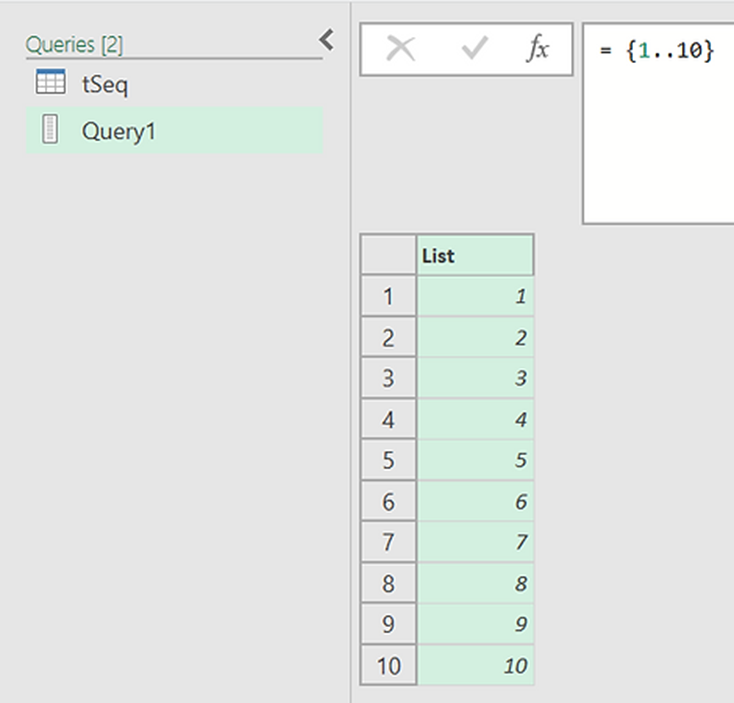
One list can contain multiple data types as shown in above 2nd picture.
Record:

Name, Age, City are column headers and Meganathan, 41, Chennai are the values of the record. Record can only contain one row, if you want to add more records, we can house them in list and then combine as shown below.

Then, we can wrap this list of records in Table. FromRecords function to get table.

Back to the Topic:
Select 'tSeq' query in left side pane and click on the fx button in formula bar to insert new step. It refers to previous step 'ChType', Delete everything in formula bar other than equal to sign. Now, we are going to create a record with multiple columns, so start with square brackets as shown below.
Step-1:

First field name of this record is "Seq", and it contains Sequence column as list.
Here 'Sequence' is wrapped in square brackets, which is a field access operator.
Outer square brackets refer to record.
Step-2:

2nd field name is "S", here we create list without any missing numbers.
For that, we get minimum and maximum number from the earlier list (Seq) and wrap it in curly braces with double dots. This function creates list of numbers from the number preceding double dots to the number following double dots.
Step-3:

3rd column name is "F", Here we use below function,

This function asks 2 lists and removes matching items in between these 2 lists.
Step-4:

All we need is F column in record; to pick that column, we can simply use field access operator at the end of record as shown above.
Step-5:

We should convert this list into table before loading in excel. So, wrap entire construction in Table. FromList function as shown above.
Arguments of this function,

For list argument, we use above construction,
For splitter function, we don't need to do any split function, we simply need everything,
so we use Splitter.SplitByNothing().
For Columns, we use the name "Missing numbers" in list format.
Now, we can load this table into Excel sheet.
Method 2:

In this method, we are going to use List.Difference function instead of List.RemovematchingItems.
Arguments of this function,

If we swap the position of lists, both functions will give different results. So, Ensure the position of lists.
Bonus Tip:

In Table. FromList function,
In splitter argument, Instead of Splitter.SplitByNothing() function we can simply use above construction.



Comments